
Get peace of mind in the palm of your hand
How it works
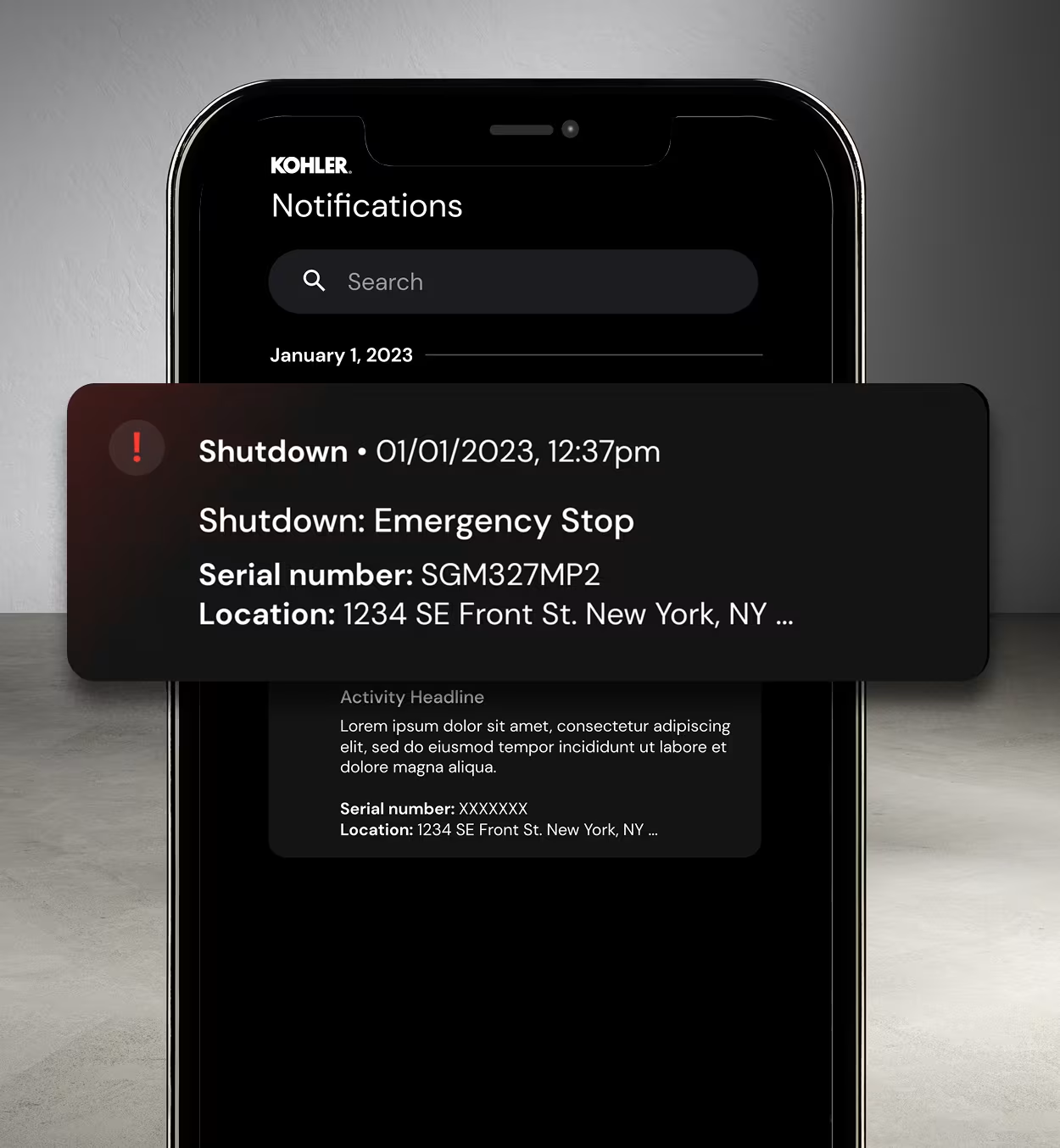
Get real-time alerts on the status of your generator, thanks to the continuous monitoring done by the KOHLER Energy Management App. It’s peace of mind in one simple package.
Schedule or start a test cycle anytime and from anywhere with ease to ensure your generator is ready to go when you need it most. You can also confirm your generator’s scheduled test was completed and run additional ones on demand.* *Depending on what controller you have and or firmware version.
Get a transparent view into the history of your generator—especially helpful if your unit has changed owners.
Get a clear view into how your generator has been serviced throughout its lifetime, thanks to maintenance history records at your fingertips.
Support when you need it
If you’ve followed our Quick Start Guide and are still experiencing issues, contact our customer service team at 1-833-393-6650 and press 3.
Due to high call volumes, we also recommend reviewing our FAQs for additional assistance on topics like 'creating an account' or 'adding your generator to the app'.
*Remote monitoring available when the generator is connected to the internet.

App FAQs
You can download the Kohler Energy Management App from the Apple or Google Play store. Follow one of these links (based on what phone you have):
iPhone: Download on the App Store
Android: Get it on Google Play
Or type “Kohler Energy Management” in the app's store search bar and look for the icon with the Lightning bolt.
Once you download the App according to the phone you have, refer to our Quick Start Guide.
Yes. The new Kohler Energy Management Application requires users to create a new set of login credentials. This is required if you are a brand new app user or if you have ever used the OnCue app in the past.
Go to the store (App Store or Google Play)
Download the app
Open the app on your mobile device
Select New here? Create an account and complete the required fields
iPhone:
Open the KOHLER Energy Management App.
From the home screen: Click the bell icon in the bottom left corner.
On the Notifications page: click the settings icon in the top right corner.
Find the email notification setting.
Switch “email notification” to on. You will then receive emails to the address you have signed up.
Android:
Open the KOHLER Energy Management App.
From the home screen: Click the bell icon in the bottom left corner.
On the Notifications page: click the settings icon in the top right corner.
Find the email notification setting.
Switch “email notification” to on. You will then receive emails to the address you have signed up with.
iPhone:
Open your phone settings app.
Tap Notifications.
Select the Kohler Energy Management app.
Toggle the “Allow Notifications” switch to “on”.
Choose how and where you want to receive notifications.
Android:
Go to Settings.
Select Apps & Notifications.
Tap Notifications.
Choose the app you want to manage notifications for Kohler Energy Management.
Toggle the “Show notifications” option to on.
Select the type of notifications you want to show.
iPhone:
Open the KOHLER Energy Management App.
From the home screen: Click the bell icon in the bottom left corner.
On the Notifications page: click the settings icon in the top right corner.
Switch desired notifications to on or off.
Android:
Open the KOHLER Energy Management App.
From the home screen: Click the bell icon in the bottom left corner.
On the Notifications page: click the settings icon in the top right corner.
Switch desired notifications to on or off.
iPhone:
Open the App Store.
Tap your profile picture or the My Account button at the top right.
Scroll down to see pending updates.
Tap “Update” next to the app you want to update.
For more information click here
Android:
Open the Google Play Store.
Tap your profile icon in the top right corner.
Select "Manage Apps and Devices”.
Tap “Update” next to the app you want to update.
For more information click here
